Kerf Bridge
Beta · iPad · TestFlight

Kerf for iPad: testers wanted.

Kerf turns an iPad into the control panel for a GRBL laser. Draw or import a design, see the whole burn before anything moves, and send it to your laser. It's nearly ready for the App Store, and it needs people with lasers to try it first.

If you've got a diode laser or a GRBL conversion, join the beta and tell us what breaks.

The Kerf app icon

What's in it

Design on the iPad, preview the burn, then let the laser run it. Tap a picture to see it bigger.
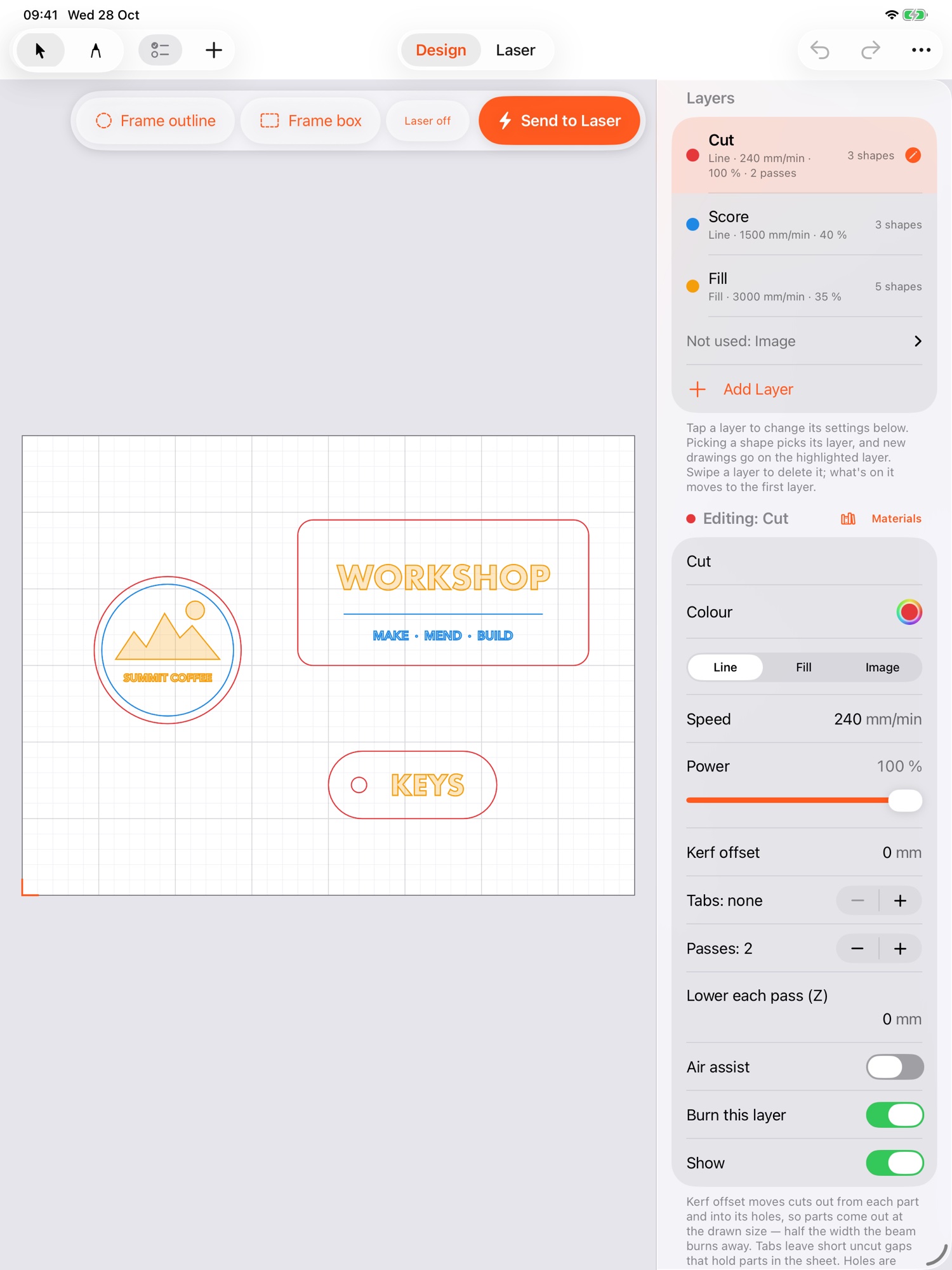
Designing a layout of shapes and text in Kerf
Draw, add text, or import SVG, DXF, PDF and photos.
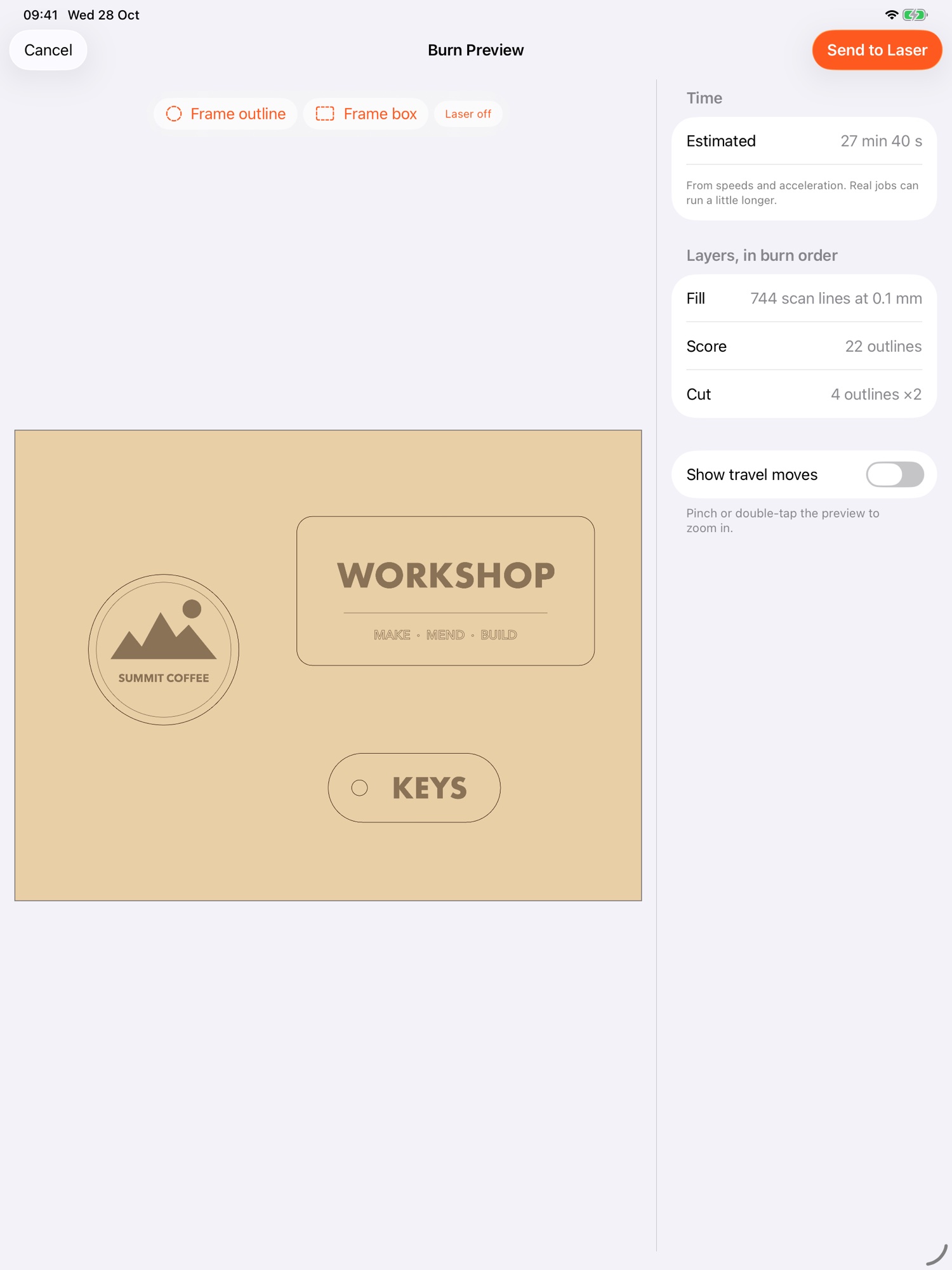
Burn Preview showing the job on a sheet of plywood
Burn Preview shows the job and how long it'll take.
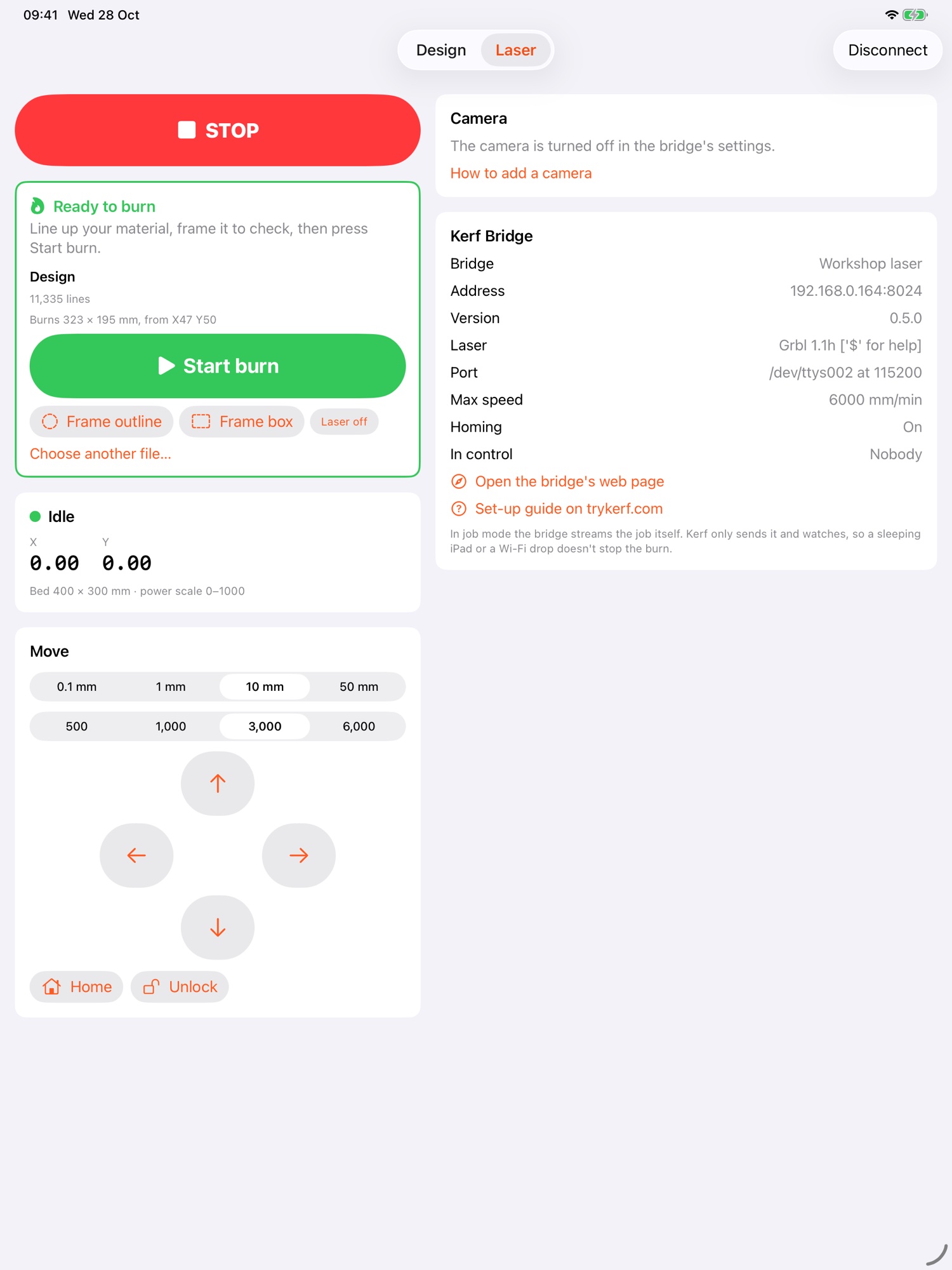
The laser panel with Frame and Start buttons
Frame the job, then start it with one button.
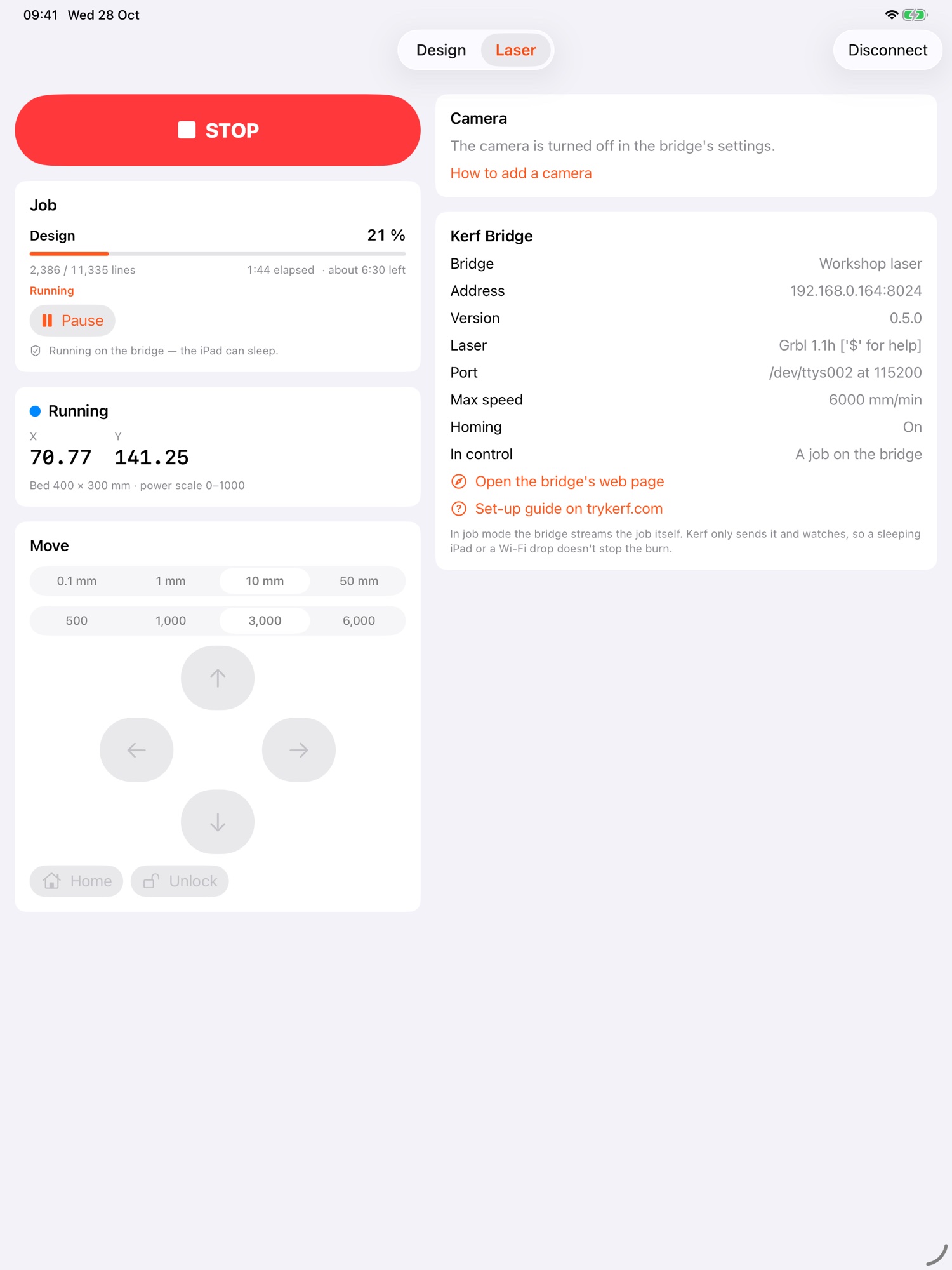
A job running, with progress and a Stop button
Watch progress, pause or stop from anywhere on your Wi-Fi.

What you need

  • An iPad on iPadOS 17 or later.
  • A laser with a GRBL controller on USB: most diode lasers (Ortur, Atomstack, Sculpfun and others) and GRBL conversions. Ruida controllers aren't supported. If LightBurn connects to it as a GRBL device, Kerf will too.
  • A computer to sit beside the laser and run Kerf Bridge: a Raspberry Pi, a Windows PC or a Mac. The iPad reaches the laser through it over Wi-Fi.
  • Optional: a USB webcam over the bed, plugged into a Raspberry Pi, to line work up on the material.

Why a bridge?

  • An iPad can't plug into a laser's USB port, so the bridge does it and puts the laser on your Wi-Fi.
  • Kerf sends the whole job to the bridge, and the bridge runs it. The iPad can sleep without stopping the burn.
  • The bridge is free, and you only set it up once.

Getting started, step by step

About 15 minutes the first time. You can design and use Burn Preview straight after step 1; steps 2 to 4 are for burning.

1. Install Kerf from TestFlight

  1. On your iPad, install TestFlight from the App Store. It's Apple's free app for trying apps before they're released.
  2. Open the beta link on the iPad, tap Accept, then Install.

2. Put Kerf Bridge on the computer beside the laser

Pick one. Plug the laser into that computer by USB first, and switch the laser on.

Raspberry Pi

Pi 3, 4, 5 or Zero 2 W with Raspberry Pi OS (64-bit if you'll want the camera), connected to your network.

In a terminal on the Pi, or over SSH, run:

curl -fsSL https://trykerf.com/install.sh | sh

It starts by itself whenever the Pi does. Full Pi steps, including how to read the installer first.

Windows

Windows 10 or 11, 64-bit.

  1. Download the bridge for Windows and run it.
  2. If Windows warns you, choose More info → Run anyway.
  3. When asked, allow it through the firewall.

Full Windows steps

Mac

macOS 13 or later.

  1. Download the bridge for Mac and open it.
  2. Drag Kerf Bridge to Applications and open it. A bolt appears in the menu bar.
  3. If macOS asks about your local network, choose Allow.

Full Mac steps

3. Follow the bridge's set-up wizard

  1. Open the bridge's page in a browser. On a Mac it opens by itself the first time. On Windows, go to http://localhost:8023 on that PC. For a Pi, go to http://<the Pi's address>:8023 from any computer on your network.
  2. The wizard asks four things: which port the laser is on (press Test and it checks the laser answers), which camera to use if you have one, a name for the bridge, and then shows how to connect.
  3. When it's done, the page shows the laser as connected, with its position and a big STOP button. Try jogging the head to check.

4. Connect Kerf to the bridge

  1. Make sure the iPad is on the same Wi-Fi as the bridge.
  2. In Kerf, open the Laser tab. The bridge appears under Kerf Bridges on this network: tap it. If iPadOS asks to find devices on your local network, choose Allow.
  3. Not listed? Tap Connect by address and type the bridge's address with port 8023.
  4. Design something and tap Send to Laser. In Burn Preview, frame the job first, then press Start.
  5. For good starting settings, pick your laser's maker, model and module from a layer's Materials menu: Kerf fills in the maker's speed and power for common materials.

Stuck? If something's not right covers the usual problems, such as a charge-only USB cable or a laser showing "Held". Or send feedback from TestFlight and we'll help.

What to try

  • Connect to your laser through the bridge, frame a job and burn it.
  • Pick your machine and laser module, and check the material settings for the materials you use.
  • Import your own SVG, DXF and PDF files, and trace a photo or logo.
  • If you have a camera over the bed, line it up and fit a design to a piece you've laid down.

Sending feedback

  • Take a screenshot in Kerf and tap Share Beta Feedback, or open TestFlight, choose Kerf and tap Send Beta Feedback.
  • Say which laser and laser module you have, and what you were doing when something went wrong.
  • If Kerf crashes, TestFlight offers to send the crash report. Please say yes.

Questions

Does the beta cost anything?

No. In the beta, purchases are test purchases, so the trial and Kerf Laser Unlock cost nothing and you're never charged. They don't carry over to the App Store version.

How long does the beta last?

Each beta build works for 90 days, and new builds arrive in TestFlight as they're ready. The beta may close once Kerf is on the App Store.

What does the beta share?

Kerf itself collects nothing. TestFlight sends us crash reports and any feedback or screenshots you choose to send, with your device model and iPadOS version. See Privacy.

Is it safe to leave a job running?

Never leave a laser unattended, beta or not. Stay with the laser, keep a fire extinguisher nearby, and use STOP or the laser's own emergency stop if anything looks wrong.